Temperature Modeling with LCZ
Max Anjos
September 18, 2026
Source:vignettes/local_func_modeling.Rmd
local_func_modeling.RmdIntroduction
Understanding temperature variations within urban environments is
crucial for climate research, particularly when examining Urban Heat
Islands (UHI). The LCZ4r package offers powerful functions for creating
interpolated maps and thermal anomaly analyses within Local Climate
Zones (LCZs). The lcz_interp_map() and
lcz_anomaly_map() functions can be applied to generate
detailed spatial representations of air temperature, allowing
researchers to analyze the influence of urban structures and land use on
local climates.
In this guide, we’ll demonstrate how to use these functions to model temperature data across Berlin’s LCZ, covering:
- Spatial interpolation of air temperature using LCZ classes
- Thermal anomaly mapping to identify hot and cool spots
- Temporal analysis across different time scales
- Customization options for spatial resolution and visualization
library(LCZ4r)

# Get the LCZ map for your city
lcz_map <- lcz_get_map_euro(city = "Berlin")

# Load sample data from LCZ4r
data("lcz_data")
Understanding Spatial Interpolation with LCZ:
The interpolation functions in LCZ4r use Kriging, a geostatistical technique that considers spatial autocorrelation to estimate temperatures at unmeasured locations. By integrating LCZ classes, the interpolation accounts for the thermal characteristics of different urban forms, resulting in more realistic temperature distributions.
Key parameters: - sp.res: Spatial resolution in meters (default: 100 m) - tp.res: Temporal aggregation frequency (hour, day, month) - by: Splits the analysis by temporal or categorical variables
Interpolating Air Temperature
The lcz_interp_map() function generates interpolated air
temperature maps based on LCZ classes. These functions apply
interpolation techniques to estimate temperatures across the study
area.
Single Hour Map Interpolation
The following example demonstrates how to generate a temperature map for a specific date and time.
# Mapping air temperatures for February 6, 2019 at 05:00h
my_interp_map <- lcz_interp_map(lcz_map,
                                data_frame = lcz_data,
                                var = "airT",
                                station_id = "station",
                                sp.res = 100,
                                tp.res = "hour",
                                year = 2019, month = 2, day = 6, hour = 5)

# Customize the plot with titles and labels
lcz_plot_interp(my_interp_map,
                title = "LCZ Air Temperature Distribution",
                subtitle = "Berlin - February 6, 2019 at 05:00",
                caption = "Source: LCZ4r, 2024",
                fill = "Temperature [°C]")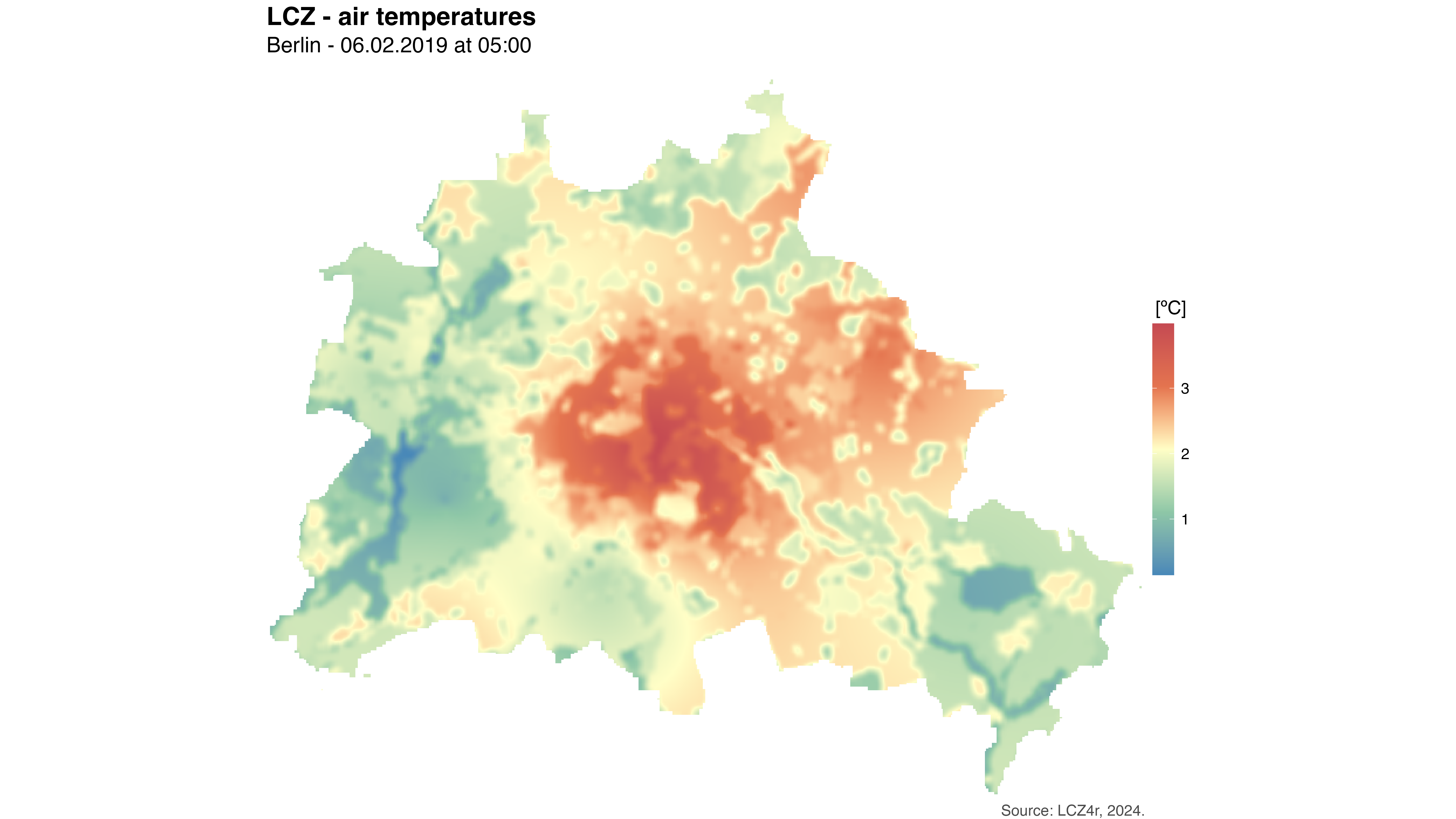
Spatial interpolation of air temperature for Berlin at 05:00 on February 6, 2019. The map reveals temperature variations across different LCZ classes, with warmer areas typically corresponding to compact built zones.
Hourly Interpolation Over a Day
The by = "hour" argument allows you to generate a
sequence of hourly temperature maps for a specific day, with each hour
represented as an individual raster layer.
# Generate hourly temperature maps for the entire day
my_interp_map <- lcz_interp_map(lcz_map,
                                data_frame = lcz_data,
                                var = "airT",
                                station_id = "station",
                                sp.res = 100,
                                tp.res = "hour",
                                year = 2019, month = 2, day = 6,
                                by = "hour")

# Rename raster layers with hour numbers
names(my_interp_map) <- paste0("Hour ", 1:24)

# Visualize all hourly maps
lcz_plot_interp(my_interp_map,
                title = "Hourly LCZ Air Temperature Patterns",
                subtitle = "Berlin - February 6, 2019",
                caption = "Source: LCZ4r, 2024",
                fill = "Temperature [°C]")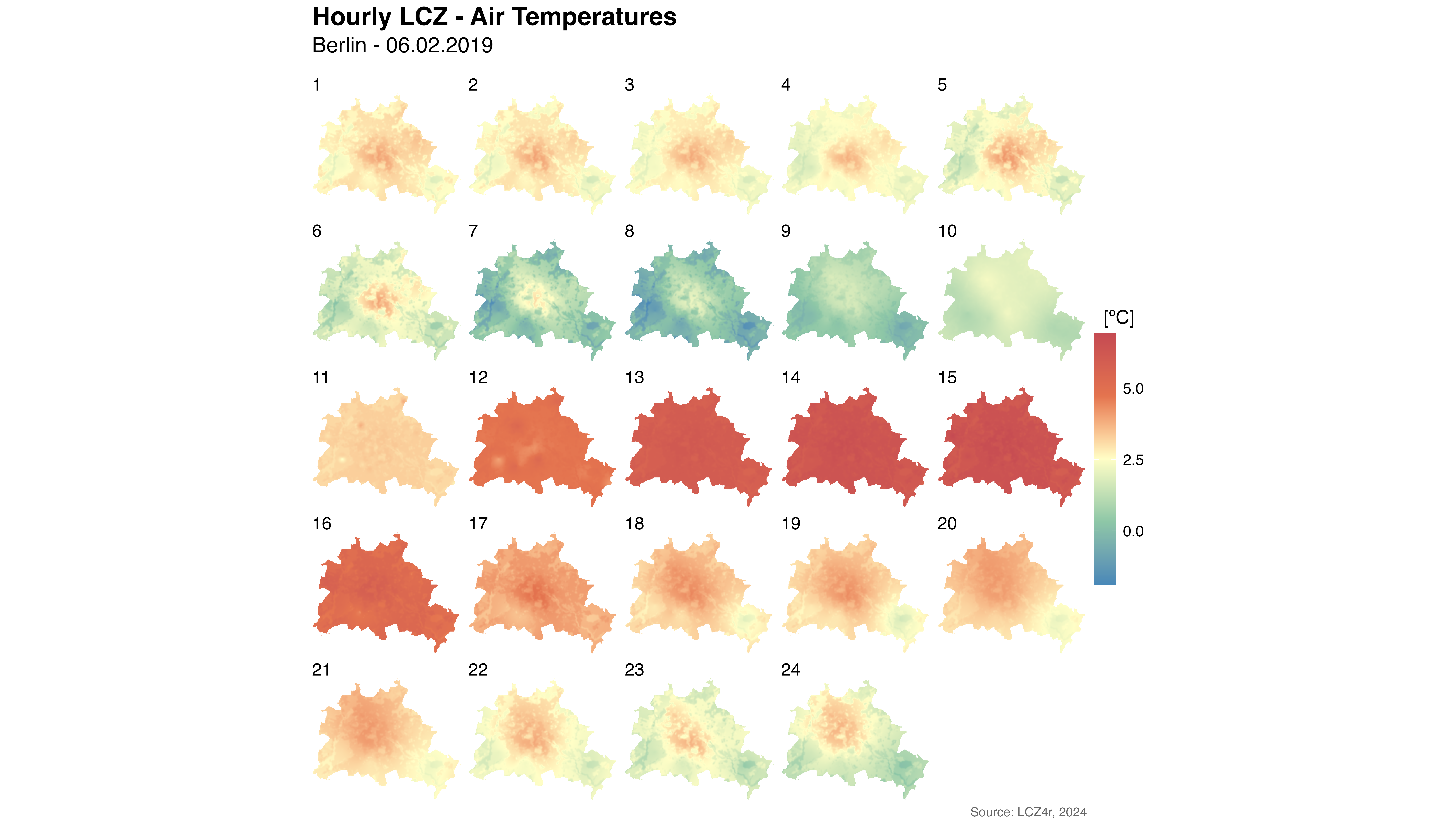
Hourly temperature interpolation sequence for February 6, 2019, showing the diurnal evolution of temperature patterns across Berlin’s LCZ classes.
Interpolating Thermal Anomalies
The lcz_anomaly_map() function highlights temperature
anomalies relative to average conditions across LCZs. Anomaly maps are
particularly useful for identifying areas where temperatures
significantly differ from typical values, such as heat hotspots within
urban areas.
Single Day Map Interpolation
# Generate a thermal anomaly map for a specific day
my_anomaly_map <- lcz_anomaly_map(lcz_map,
                                  data_frame = lcz_data,
                                  var = "airT",
                                  station_id = "station",
                                  sp.res = 100,
                                  tp.res = "day",
                                  year = 2019, month = 2, day = 6)

# Plot the thermal anomaly map
lcz_plot_interp(my_anomaly_map,
                title = "LCZ Temperature Anomalies",
                subtitle = "Berlin - Daily Anomalies on February 6, 2019",
                caption = "Source: LCZ4r, 2024",
                fill = "Temperature Anomaly [°C]",
                palette = "bl_yl_rd")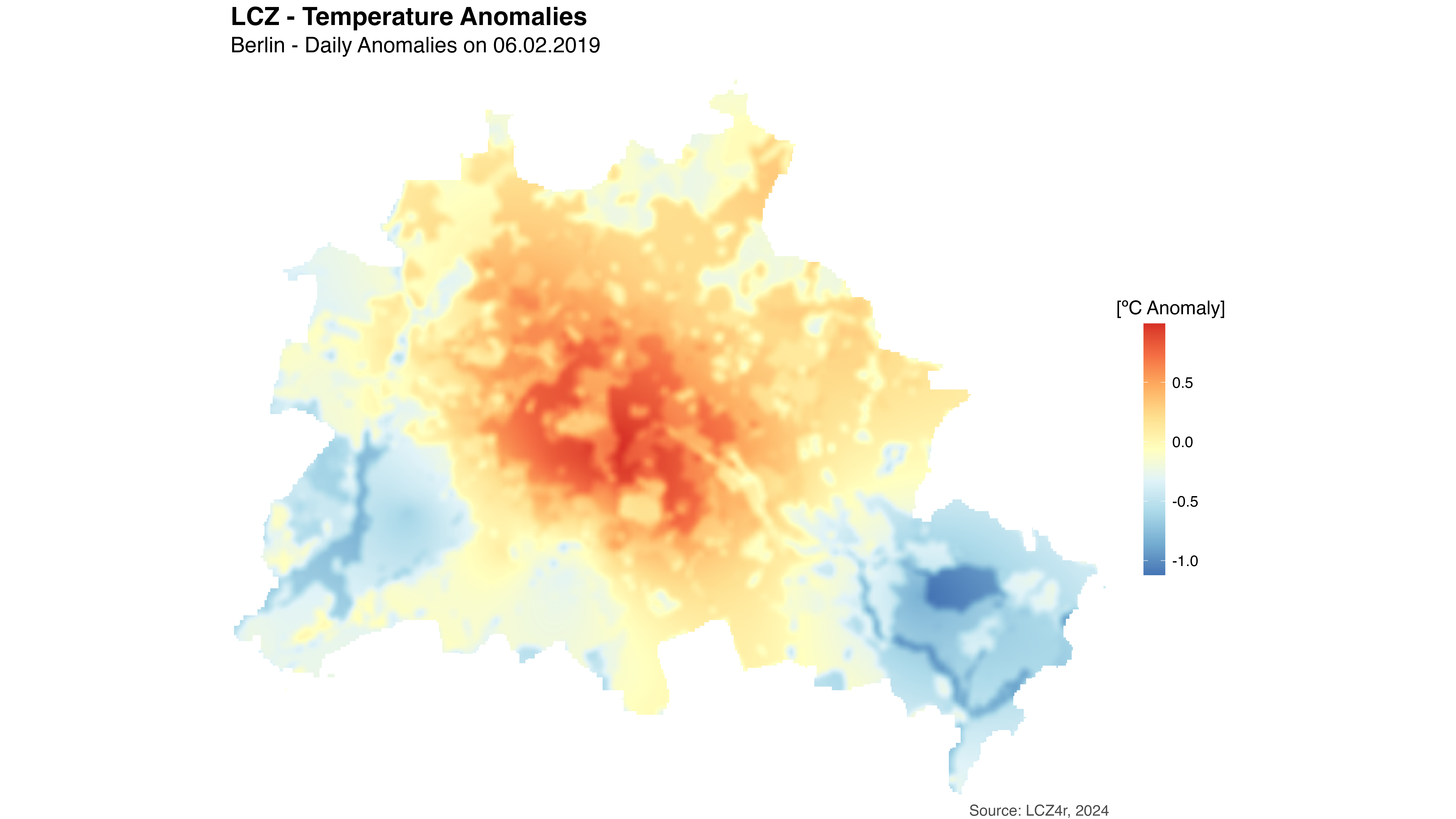
Thermal anomaly map for Berlin on February 6, 2019. Red areas indicate temperatures above the urban average (hot spots), while blue areas indicate below-average temperatures (cool spots).
Daytime and Nighttime Anomalies
Using the by = "daylight" argument splits the analysis
into daytime and nighttime periods, revealing how thermal patterns
change between diurnal cycles.
# Separate anomalies into daytime and nighttime
my_anomaly_map <- lcz_anomaly_map(lcz_map,
                                  data_frame = lcz_data,
                                  var = "airT",
                                  station_id = "station",
                                  sp.res = 100,
                                  tp.res = "hour",
                                  year = 2019, month = 2, day = 6,
                                  by = "daylight")

# Rename raster layers for clarity
names(my_anomaly_map) <- c("Daytime", "Nighttime")

# Plot the thermal anomaly maps for day and night
lcz_plot_interp(my_anomaly_map,
                title = "LCZ Temperature Anomalies",
                subtitle = "Berlin - Diurnal Cycle on February 6, 2019",
                caption = "Source: LCZ4r, 2024",
                fill = "Temperature Anomaly [°C]",
                palette = "bl_yl_rd")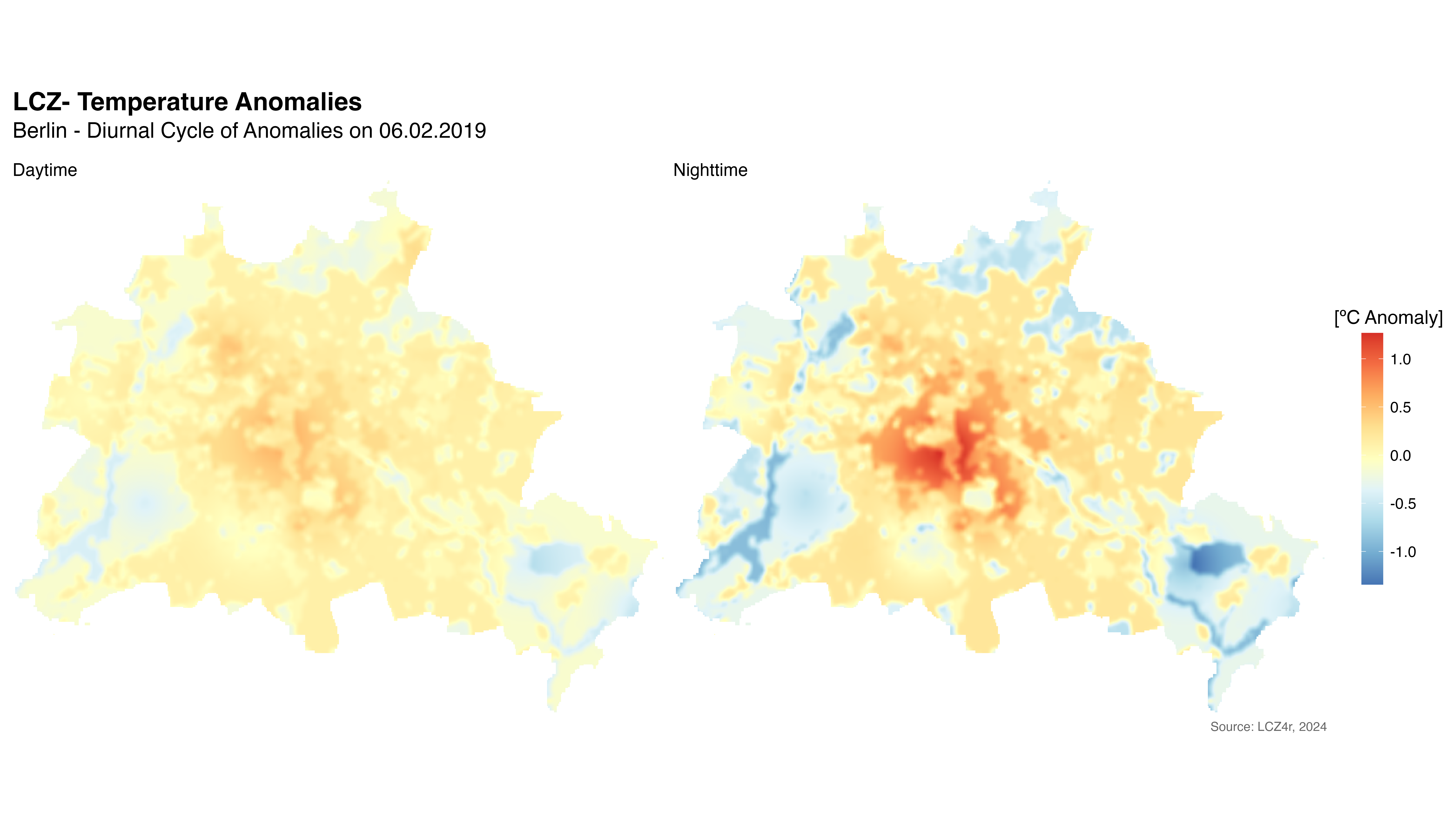
Comparison of daytime and nighttime thermal anomalies on February 6, 2019. This reveals how urban thermal patterns differ between day and night, with UHI typically strengthening after sunset.
Advanced Modeling Options
Seasonal Temperature Patterns
You can generate temperature maps for different seasons to understand seasonal variations:
# Generate seasonal temperature maps for 2019
seasonal_maps <- lcz_interp_map(lcz_map,
                                data_frame = lcz_data,
                                var = "airT",
                                station_id = "station",
                                sp.res = 100,
                                tp.res = "day",
                                year = 2019,
                                by = "season")

# Visualize seasonal patterns
lcz_plot_interp(seasonal_maps,
                title = "Seasonal LCZ Air Temperature Patterns",
                subtitle = "Berlin - 2019",
                caption = "Source: LCZ4r, 2024",
                fill = "Temperature [°C]")
Custom Spatial Resolution
Adjust the spatial resolution to match your analysis needs:
# High resolution (50 m) for detailed analysis
high_res_map <- lcz_interp_map(lcz_map,
                               data_frame = lcz_data,
                               var = "airT",
                               station_id = "station",
                               sp.res = 50,  # Higher resolution
                               tp.res = "hour",
                               year = 2019, month = 7, day = 15, hour = 14)

# Lower resolution (500 m) for regional overview
low_res_map <- lcz_interp_map(lcz_map,
                              data_frame = lcz_data,
                              var = "airT",
                              station_id = "station",
                              sp.res = 500,  # Lower resolution
                              tp.res = "hour",
year = 2019, month = 7, day = 15, hour = 14)Tip: Higher spatial resolution (lower sp.res values) produces more detailed maps but requires more computational resources. Start with the default 100 m resolution and adjust based on your specific needs and available computing power.
Multiple Time Steps
Generate maps for multiple dates to analyze temporal changes:
# Generate maps for specific dates across the year
selected_dates <- lcz_interp_map(lcz_map,
                                 data_frame = lcz_data,
                                 var = "airT",
                                 station_id = "station",
                                 sp.res = 100,
                                 tp.res = "day",
                                 year = 2019,
                                 month = c(1, 4, 7, 10),
                                 day = 15)

# Visualize the seasonal progression
lcz_plot_interp(selected_dates,
                title = "Seasonal Temperature Progression",
                subtitle = "Berlin - 2019 (15th of Jan, Apr, Jul, Oct)",
                caption = "Source: LCZ4r, 2024",
                fill = "Temperature [°C]")
Working with Raster Outputs
The interpolation functions return raster objects that can be further analyzed:
Accessing Raster Values
# Extract raster data for statistical analysis
library(raster)

# Get temperature values for a specific location
temperature_at_point <- extract(my_interp_map,
                                cbind(longitude, latitude))

# Calculate summary statistics for the study area
mean_temperature <- cellStats(my_interp_map, stat = "mean")
max_temperature <- cellStats(my_interp_map, stat = "max")
min_temperature <- cellStats(my_interp_map, stat = "min")

# Calculate temperature by LCZ class
lcz_values <- extract(my_interp_map, lcz_map)
Exporting Rasters
# Save raster as GeoTIFF for use in other software
writeRaster(my_interp_map,
            filename = "berlin_temperature_20190206_05h.tif",
            format = "GTiff",
            overwrite = TRUE)

# Save multiple rasters in a stack
writeRaster(my_interp_map,
            filename = "berlin_hourly_temperatures.tif",
            bylayer = TRUE,
            suffix = "names",
            format = "GTiff")
Practical Applications
Temperature modeling with LCZ has numerous practical applications:
1. Urban Heat Island Assessment
Identify areas with persistent high temperatures to prioritize urban cooling interventions.
2. Heatwave Early Warning
Use interpolated temperature maps to predict areas at highest risk during extreme heat events.
3. Urban Planning Support
Inform decisions about green infrastructure placement, building density, and urban design.
Summary of Parameters
Here’s a quick reference for the main parameters used in interpolation functions:
| Parameter | Description | Options |
|---|---|---|
sp.res |
Spatial resolution in meters | Numeric (e.g., 100, 250, 500) |
tp.res |
Temporal aggregation frequency | “hour”, “day”, “month”, “year” |
by |
Data splitting method | “hour”, “season”, “month”, “daylight”, etc. |
palette |
Color palette for visualization | “bl_yl_rd”, “viridis”, “magma”, etc. |
fill |
Color bar label | Text description |
title |
Plot title | Text |
subtitle |
Plot subtitle | Text |
caption |
Plot caption | Text |
Performance Considerations
Important Notes:
- Computational Resources: High-resolution maps (sp.res < 50 m) require significant memory and processing time
- Data Density: Interpolation accuracy depends on the number and distribution of monitoring stations
- Temporal Resolution: Hourly maps for extended periods can generate large file sizes
- LCZ Representation: Ensure your study area has adequate representation of all LCZ classes for accurate interpolation
Have feedback or suggestions?
Do you have an idea for improvement or did you spot a mistake? We’d love to hear from you! Click the button below to create a new issue (GitHub) and share your feedback or suggestions directly with us.
Open GitHub issue